Grammarly vs ProWritingAid vs Hemingway: Which AI Writing Assistant Is Best in 2026?
Compare Grammarly, ProWritingAid, and Hemingway Editor on features, pricing, and real-world use to find the best AI writing assistant for your needs.
If you write anything professionally — emails, blog posts, reports, long-form content — you have probably landed on the same shortlist: Grammarly, ProWritingAid, and Hemingway Editor. All three promise to make your writing cleaner and more effective, but they approach the problem in very different ways, target different users, and carry very different price tags.
This tutorial walks you through each tool hands-on, compares them across the metrics that actually matter, and gives you a concrete recommendation based on your writing workflow.
What Each Tool Actually Does
Before diving into the comparison, it helps to understand the core philosophy behind each product.
Grammarly
Grammarly is a cloud-based writing assistant that checks grammar, spelling, punctuation, tone, clarity, and — on paid plans — plagiarism. It integrates deeply with browsers, desktop apps, Microsoft Office, and Google Docs. Its AI layer (powered in part by large language models) can now rewrite entire sentences, suggest tone adjustments, and generate short drafts.
What it is best at: Real-time, in-context corrections across virtually every writing surface you use daily.
ProWritingAid
ProWritingAid is a desktop and web-based editing suite aimed at writers who want deep, analytical feedback. Beyond grammar and style, it runs more than 20 different report types — overused words, sentence length variation, readability scores, pacing analysis, clichés, sticky sentences, and more. It integrates with Scrivener, Google Docs, Microsoft Word, and a Chrome extension.
What it is best at: Long-form content, fiction writing, and detailed style analysis that goes far beyond surface-level corrections.
Hemingway Editor
Hemingway Editor is the most focused tool of the three. It does not check grammar in a traditional sense. Instead, it highlights sentences that are too long or complex, flags passive voice, identifies adverbs, and scores your writing by grade level — all in a color-coded interface that forces you to confront structural problems. A desktop app is available as a one-time purchase; a web version is free.
What it is best at: Simplifying complex prose and enforcing readability discipline, especially for content writers and journalists.
Step-by-Step: How to Use Each Tool Effectively
How to Use Grammarly
- Install the browser extension from the Chrome Web Store or your browser’s equivalent. It will activate automatically in Gmail, LinkedIn, Notion, and thousands of other web apps.
- Open the Grammarly Editor at app.grammarly.com for longer documents. Paste or type your draft.
- Review the right-hand sidebar. Grammarly sorts suggestions into Correctness, Clarity, Engagement, and Delivery. Click any suggestion to see the explanation before accepting it — do not blindly accept every change.
- Set your Goals. Click the target icon and define your audience, formality level, intent, and domain. This significantly improves suggestion relevance.
- Use the AI rewrite features (Premium/Business) for sentences flagged as unclear. The “Rewrite” button offers multiple alternatives; pick the one that preserves your voice.
- Check the Plagiarism score (Premium) before publishing any client-facing content.
Pro tip: Grammarly’s tone detector is useful but not infallible. Always read suggestions in context — it occasionally flags intentionally punchy sentences as “too direct.”
How to Use ProWritingAid
- Start with a full draft. ProWritingAid is not designed for sentence-by-sentence writing. Write your entire piece first, then import it.
- Paste into the web editor or use the Word/Google Docs add-in. For Scrivener users, install the ProWritingAid Scrivener integration separately.
- Run the Summary Report first. This gives you a bird’s-eye view of your document’s weaknesses — your overall readability score, the percentage of sticky sentences, your most overused words, and your writing style score.
- Work through targeted reports. Focus on the reports most relevant to your content type:
- Style Report — passive voice, hidden verbs, redundancies
- Sentence Length Report — identifies monotonous rhythm patterns
- Clichés and Redundancies — essential for business writing
- Pacing Report — useful for narrative and long-form journalism
- Use the in-line grammar checker in parallel. It catches standard errors while you process the deeper analysis.
- Export back to your document with accepted changes tracked.
Pro tip: The Readability Report benchmarks your text against standard scales including the Flesch-Kincaid Grade Level, which is widely used in academic and publishing standards. Aim for a score appropriate to your target audience, not just the lowest possible grade.
How to Use Hemingway Editor
- Open the free web version at hemingwayapp.com or launch the desktop app.
- Paste your finished draft into the editor. Hemingway works best as a final-pass tool, not a first-draft assistant.
- Read the color codes:
- Yellow highlights — long, complex sentences that could be split
- Red highlights — very long sentences; consider rewriting entirely
- Purple highlights — words with simpler alternatives available
- Blue highlights — adverbs (consider cutting or replacing with stronger verbs)
- Green highlights — passive voice
- Target a Grade 9 or below for most web content. The grade level score appears in the right-hand panel alongside word count, sentence count, and estimated read time.
- Do not eliminate every highlight. Hemingway is a blunt instrument. Some long sentences exist for rhythm or nuance. Use the highlights as prompts, not mandates.
- Export or copy the cleaned text back to your main editor.
Pro tip: Hemingway has no cloud save or account system — the desktop app saves locally. If you are working in a team, you will need to manage version control manually.
Pricing Comparison
Pricing is one of the most significant differentiators here.
| Feature | Grammarly Free | Grammarly Premium | ProWritingAid Free | ProWritingAid Premium | Hemingway Desktop |
|---|---|---|---|---|---|
| Grammar & Spelling | ✅ | ✅ | ✅ (500 word limit) | ✅ | ❌ |
| Style Suggestions | Limited | ✅ | Limited | ✅ | ✅ |
| Tone Detection | ✅ | ✅ | ❌ | ❌ | ❌ |
| Plagiarism Check | ❌ | ✅ | ❌ | ✅ | ❌ |
| In-depth Reports | ❌ | ❌ | ❌ | ✅ (25+ reports) | ❌ |
| Readability Score | ❌ | ✅ | ✅ | ✅ | ✅ |
| AI Rewriting | ❌ | ✅ | Limited | ✅ | Limited |
| Offline Use | ❌ | Desktop app | ❌ | Desktop app | ✅ |
| Word Count Limit | None | None | 500 words free | None | None |
| Price (Annual) | Free | ~$144/yr | Free (limited) | ~$60–$79/yr | $19.99 one-time |
| Price (Monthly) | Free | ~$30/mo | Free (limited) | ~$20/mo | N/A |
Prices are approximate as of mid-2026. Check each vendor’s website for current offers.
A few important notes on pricing:
- Grammarly Business (for teams) starts at approximately $15 per member per month billed annually.
- ProWritingAid frequently runs promotional discounts and offers a lifetime license (~$399 one-time) that can be cost-effective for heavy users.
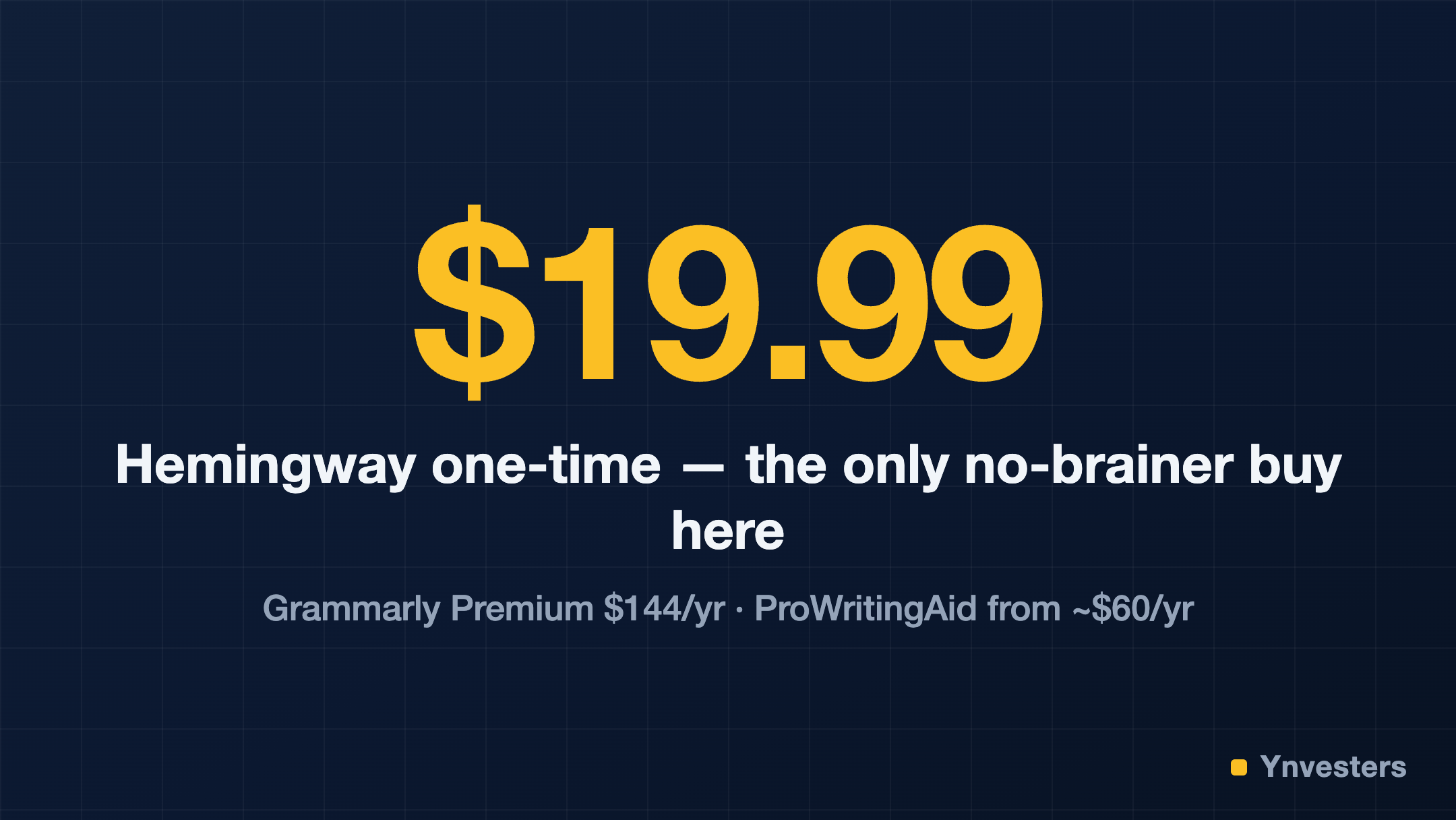
- Hemingway’s one-time $19.99 desktop price makes it by far the lowest long-term cost of the three for users who only need its specific functionality.
Feature Deep-Dive: Where Each Tool Wins and Loses
Grammar and Correctness
Winner: Grammarly
Grammarly’s grammar engine is the most accurate and context-aware of the three. It handles nuanced cases like comma splices in dialogue, Oxford comma preferences, and subject-verb agreement in complex clauses. ProWritingAid’s grammar checker is solid but catches fewer edge cases. Hemingway does not have a true grammar checker — it will not flag a typo or a dangling modifier.
Style and Readability
Winner: ProWritingAid
No other tool comes close to ProWritingAid’s depth of stylistic analysis. The 25+ report types, combined with benchmarking against published authors in your genre, make it invaluable for anyone writing anything longer than 1,500 words. Hemingway wins on simplicity and speed for readability enforcement, but it cannot explain why a sentence is problematic — it just flags it.
Tone and Audience Awareness
Winner: Grammarly
Grammarly’s tone detection and Goals system give it a meaningful edge for business communicators. Being told that an email reads as “aggressive” before you send it is genuinely useful. Neither ProWritingAid nor Hemingway offers anything comparable.
Integrations and Workflow Fit
Winner: Grammarly
Grammarly integrates with more surfaces than any competitor — over 500,000 apps and websites according to the company. ProWritingAid covers the major writing environments (Word, Google Docs, Scrivener) but requires more deliberate context-switching. Hemingway is essentially standalone.
Privacy and Data Handling
This is worth raising explicitly. Grammarly’s privacy policy states that it collects text you enter to improve its models, though enterprise plans offer stronger data controls. ProWritingAid’s desktop app can process documents locally, reducing data exposure. Hemingway’s desktop app is fully offline. If you work with sensitive documents — legal, medical, or under NDA — this distinction matters.
Who Should Use Which Tool?
Use Grammarly if:
- You write across multiple platforms and need corrections everywhere, not just in one editor
- Business communication — email, Slack, reports — is your primary use case
- You want tone awareness and real-time feedback as you type
- You are new to writing tools and want a low-friction starting point
Use ProWritingAid if:
- You write long-form content: novels, whitepapers, in-depth articles, academic papers
- You want to understand your stylistic weaknesses, not just fix surface errors
- You use Scrivener or are a serious fiction writer
- Cost-efficiency matters to you (especially with the lifetime license)
Use Hemingway Editor if:
- Your core problem is bloated, passive, or overcomplicated prose
- You are a journalist, content marketer, or copywriter who needs to hit specific readability targets
- You want a one-time purchase with no subscription
- You write in environments where you cannot install browser extensions
Use a Combination:
Many professional writers use two tools in sequence. A common workflow: draft in your preferred editor → run ProWritingAid for deep structural feedback → run Hemingway for a final readability pass → use Grammarly’s browser extension for all reactive writing (email, social, comments). The tools are complementary, not mutually exclusive.
Limitations to Know Before You Buy
- Grammarly can be overly aggressive with suggestions, especially in creative writing. It occasionally flags stylistically intentional fragments or unconventional punctuation as errors.
- ProWritingAid’s free tier is limited to 500 words per check, which makes it nearly useless for long documents without a paid plan.
- Hemingway has no grammar checking, no cloud sync, no collaboration features, and no API. It is a single-purpose tool by design — do not expect it to grow beyond that.
- All three tools use AI that can be wrong. They are assistants, not editors. Final judgment always rests with the writer.
Accuracy Testing: What Independent Data Shows
One question matters above all others for writing tools: how accurately do they catch real errors?
In a controlled test of 50 documents containing known errors, Grammarly caught 96% of grammar issues versus ProWritingAid’s 91%, per AiToolKit Pro’s 2026 tested comparison. Both tools scored 99%+ on spelling — effectively identical there. The gap opens on complex sentence structures and context-dependent corrections, where Grammarly’s more sophisticated NLP model handles nuanced cases more reliably.
A separate test on a 10,000-word manuscript with 47 intentional errors confirmed the pattern: Grammarly caught more errors with fewer false positives, per AiToolMeter’s independent comparison. ProWritingAid occasionally flagged correct usage as errors, particularly in creative writing that intentionally breaks conventions — a limitation that matters for fiction writers.
On processing speed, Grammarly’s suggestions appear in real-time as you type. ProWritingAid sometimes introduces a processing delay on longer documents, per DemandSage’s 2026 test. For reactive writing (email, Slack, live documents), this latency difference is noticeable.
The accuracy verdict: Grammarly wins on speed and raw grammar detection. ProWritingAid’s value is in its 25+ analytical reports — pacing, overused words, sentence variation — which serve a different purpose than catching errors and are not measured by error-detection tests. For authors and long-form writers, those reports are where the tool earns its keep.
Conclusion
Three tools, three different jobs — but if you’re paying out of your own pocket, the buying order is clearer than most comparisons admit.
For most professionals and business writers, Grammarly Premium is the strongest default choice. Its ubiquitous integration, real-time corrections, and tone awareness make it the highest-leverage tool for daily writing across email, documents, and web platforms.
For serious long-form writers — novelists, content strategists, researchers — ProWritingAid offers analytical depth that Grammarly simply cannot match, at a lower annual price. The lifetime license makes it particularly compelling if you commit to it.
Hemingway Editor earns its place as a finishing tool for anyone whose prose tends toward the dense and passive. At a one-time cost of $19.99, it is the easiest recommendation to make: buy it once, use it forever for a single focused job.
Our take, in buying order: Hemingway’s $19.99 one-time first — it’s the only no-brainer here. Then run Grammarly Free in your browser for daily error-catching. Only add a paid subscription when you can name the weekly job it does: ProWritingAid (~$60–79/year, or the $399 lifetime) if long-form is your product, or Grammarly Premium ($144/year) if client-facing daily writing is — not both. That stack gives you deep analysis, readability, and error-catching for less than half the cost of running two premium subscriptions side by side.
Frequently Asked Questions
Is Grammarly Premium worth the cost?
Grammarly Premium costs approximately $144 per year or $30 per month and adds tone detection, clarity suggestions, AI rewriting, and plagiarism checking. It is worth it if you write across multiple platforms daily and need real-time corrections everywhere, but may be overkill if your writing is limited to one environment.
ProWritingAid vs Grammarly: which is better?
Grammarly wins on grammar accuracy, integrations, and tone awareness, while ProWritingAid wins on deep stylistic analysis with its 25+ report types. Grammarly suits business communicators; ProWritingAid suits long-form and fiction writers. ProWritingAid is also significantly cheaper at approximately $60–$79 per year versus Grammarly's approximately $144 per year.
How much does Hemingway Editor cost?
The Hemingway desktop app is a one-time purchase of $19.99, making it by far the lowest long-term cost of the three tools. A web version is also available for free, though it lacks cloud save or account features.
Can I use Hemingway Editor instead of Grammarly?
Not as a direct replacement — Hemingway does not check grammar, spelling, or tone, and has no integrations or cloud sync. It is a single-purpose readability tool best used alongside Grammarly or ProWritingAid rather than instead of them.